Showing posts with label wireless. Show all posts

Monday, 20 February 2017

Windows 10 Lock Screen: Abusing the Network UI for Backdoors (and how to disable it)

This is a short blog post about a peculiar decision that Microsoft made. When you lock your computer on Windows 10, you are still able to connect to wireless networks. It's even possible to connect to new networks. You simply click on the network icon in the bottom right, and then add the wireless network:


So what's the deal with this? Well, it means that anyone can make your device connect to a possibly malicious wireless network. As an attacker you simply have to broadcast a network, wait until it shows up in the network list, and connect to it:


The victim will now automatically connect to the attacker's network whenever it is nearby. This is unwanted behavior. Since the victim automatically connects to it, it can be used to track the victim, and to intercept and manipulate his or her network traffic.


This is not ideal. When I lock my laptop, I don't expect someone to able to change my network configuration! But now someone can add a (possibly unencrypted!) wireless network to my config, and my device will automatically connect to it.

Thankfully, it's possible to disable the network menu at the lock screen. Open the Windows menu and type "Edit group policy" and open this tool. Now go to "Computer Configuration\Administration Templates\System\Logon" and enable "Do not display network selection UI":


And now the network icon is gone in your lock screen. No annoying people can now mess with your network configuration when you lock your device!

Monday, 7 March 2016

How MAC Address Randomization Works on Windows 10

When Apple announced its devices would use random MAC addresses when searching for Wi-Fi networks, it received extensive media attention. And rightly so. It prevents companies from tracking your movements, and Apple was the first major player to start doing this. Windows and Android are quietly trying to catch up. As a result, some devices running Windows now support MAC address randomization, and we will discuss how it's implemented, and where it fails. This information is a small selection from the recent paper Why MAC Address Randomization is not Enough: An Analysis of Wi-Fi Network Discovery Mechanisms.

Update: we have contacted Microsoft, and they are in the process of addressing the vulnerabilities we discovered.

How it works

Microsoft first added support for MAC address randomization in Windows 10. Unfortunately, it's only available if you have a WiFi card and driver that support it. For example, the Intel 7265 AC, when using the latest driver, supports randomization [1]. You can see if your hardware supports MAC address randomization by going through the following menus:


If your hardware supports MAC address randomization, you will see the following option at the top of the window:


As you can see, I have it enabled on my laptop. So far it's been working quite well. What's very interesting about Microsoft's approach is that it also uses random MAC addresses when connecting to a wireless networks. In contrast, Apple only uses random addresses when searching for nearby networks, and it falls back to its original address when connecting to a network. In this aspect Windows 10 offers better privacy than Apple.

Using a random MAC address to connect to a network can cause problems if users are authenticated (i.e., recognized) based on their MAC address [2]. Interestingly, Windows avoids this issue by always using the same random address every time it connect to a specific network. For example, let's say you want to pay for Wi-Fi access, and they authenticate you based on your MAC address. Then this is not a problem. The first time you connect, Windows will generate a random MAC address. And if you reconnect to this network at a later point in time, Windows will reuse the previously generated address. Therefore the system can still recognize you, and you don't have to pay twice. There's one downside to this approach: since you always use the same address when connecting to a particular network, an adversary can learn when certain devices connect to specific networks. Nevertheless, compared to the old situation where you'd always use the original MAC address, it improves your privacy.

Technically, the random MAC address that is used to connect to a network is calculated as [5]:
address = SHA-256(SSID, real MAC address, connectionId, secret)[:6]
Here SSID is the name of the network you are connecting to, real MAC address the original address of your network interface, and connectionId is a value that changes every time the user removes (and re-adds) the network (i.e., this value is updated if you "forget" the network under Windows 10). The secret parameter is a 256-bit cryptographic random number, generated during system initialization, and kept the same across reboots. Every interface has a different value of the secret parameter, to assure each interface gets different random MAC address. Finally, bits in the most significant byte of address are set so it becomes a locally administered, unicast address. While the presentation by Huitema partly described this process, our paper is the first to describe this formula in full detail.

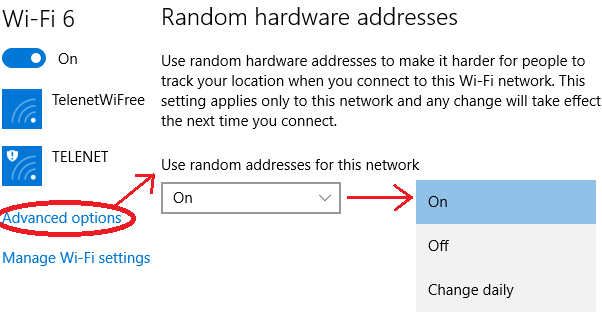
It's also possible to disable randomization for certain networks. In this case Windows will use the original address when connecting to a network. You can configure this through the following settings when you are currently connected to the network:

Notice that the user has three options for each specific network:
  • On: the same random MAC address is always used when connecting to this network.
  • Off: the original MAC address is used.
  • Change daily: every day a new random MAC address is used.
Remark that if randomization is enabled, independent of the above options, Windows 10 will always use random MAC addresses when scanning for nearby networks. This "scanning" address changes every time you connect (and disconnect) from a network, and when you restart your device [3]. Hence it doesn't change that frequently, but it's still sufficient to prevent tracking over extended periods of time. In contrast, Apple changes the scanning address roughly every few minutes, which provides more privacy.

Basic Security Analysis

Randomization as implemented in Windows 10 significantly improves your privacy. So enable it! Unfortunately, it's not perfect, because there are still some ways to defeat or bypass it.

The first weakness is that the sequence number contained in WiFi frames is not reset when changing the (random) MAC address. This sequence number, which is present in most Wi-Fi frames, is used to detected retransmissions, and is incremented by one after successfully transmitting a frame. As shown in the picture below, when the MAC address changes because the user connects to a network, the sequence counter is not reset:


The last frame from ea:69:0a:* has the sequence number of 92, and the other address 7c:5c:f8:* has the sequence number 94. Based on this an adversary can reasonably conclude that both frames are sent by the same device. In other words, he learns that the same device was using both addresses, defeating the purpose of address randomization.

The second problem is that Windows 10 reveals its real MAC address when interacting with Hotspot 2.0 networks. But what's Hotspot 2.0? Simply put, Hotspot 2.0 is a new standard to automatically and securely roam between WiFi networks. No manual interaction is needed. Your device automatically determines whether you have the appropriate credentials (passwords) to connect to a network. Think of this like the cellular network: when you get off the plane, your phone automatically finds and connects to a foreign cellular network. Hotspot 2.0 provides a similar experience for WiFi.

In order to accomplish automatic roaming, Hotspot 2.0 sends ANQP queries to the Access Point before connecting to it. These ANQP queries request detailed information about the wireless network. This information includes the credentials that are needed to connect with the hotspot, whether the hotspot provides internet access or only local network access, etc. Unfortunately, Windows 10 sends these ANQP queries using the real (original) MAC address:


In the first probe request it uses the random MAC address 2a:b3:e6:*. These probe requests are used to detect the presence of networks. If there's a Hotspot 2.0 network nearby, Windows will send ANQP requests using the real MAC address, in this case 7c:5c:f8:*. Therefore an attacker can obtain your real MAC address by advertising a Hotspot 2.0 network. Thankfully, Windows 10 only sends ANQP queries if at least one Hotspot 2.0 is configured. Since this standard is not yet widely deployed, few users will have such a network configured [4].

Detailed Security Analysis

Want to know all flaws that are present in existing implementations of MAC address randomization? And this specifically for Android, Apple, Linux, and Windows? Then read my paper Why MAC Address Randomization is not Enough: An Analysis of Wi-Fi Network Discovery Mechanisms [5]! It has everything explained in technical detail.


References and Footnotes

[1] If you have an Intel 7260 AC, you can also force Windows 10 to use the drivers of the Intel 7265 AC. Your device will still work, and will support MAC address randomization.
[2] Even though authentication based on the MAC address is utterly insecure (an adversary can easily spoof a MAC address), it's still used by many systems.
[3] C. Huitema. Personal communication, Nov. 2015.
[4] One notable exception is the Passpoint configuration provided by Boingo. Essentially Passpoint is a synonym of Hotspot 2.0. If you have this configuration installed, you have a Hotspot 2.0 capable device, and the Boingo configuration will use Hotspot 2.0. This means Windows will send ANQP queries to nearby Hotspot 2.0 networks.
[5] M. Vanhoef, C. Matte, M. Cunche, L. S. Cardoso, and F. Piessens. Why MAC Address Randomization is not Enough: An Analysis of Wi-Fi Network Discovery Mechanisms (AsiaCCS 2016).

Friday, 30 May 2014

ApBleed: Heartbleed over WPA1/2 Enterprise

Tl;dr: ApBleed is my proof-of-concept to test heartbleed against wireless networks. Patches welcome.

Once the heartbleed vulnerability in OpenSSL was made public, most focused on its applicability to web servers. Other targets such as SVN servers, VPNs, etc. were also mentioned. However, there was little public discussion about the impact of heartbleed on wireless networks.

Nevertheless, it was clear heartbleed was also exploitable against WPA1/2 enterprise networks, even if it wasn't discussed as publicly as other heartbleed stories. Normally enterprise networks use one of the many EAP methods inside an SSL tunnel to authenticate users. If OpenSSL is being used, this SSL tunnel might be vulnerable to heartbleed.

Of particular interest are networks like eduroam. Eduroam is a world-wide roaming access service between research institutions. This means that I can go to a different country, see an eduroam hotspot, and connect to it using the credentials of my home institution. What's interesting is how my credentials are checked. It's done by setting up an SSL tunnel to the RADIUS server of my own institution. The eduroam network will take care of the necessary packet routing. The image below illustrates this (taken from eduroam website):


Let's assume I'm a student at lsu.edu and currently visiting an institution of utk.edu. If I now connect to an eduroam hotspot, an SSL tunnel will be set up between my device and the RADIUS server of lsu.edu (i.e. my own institution). If my credentials are valid, lsu.edu will notify utk.edu that I should be allowed on the network.

Why is this interesting for an attacker? Because the SSL tunnel is set up before user authentication, and even before you are assigned an IP. The only thing known about you is your MAC address and your "home" institution (i.e. the realm defining your home institution). Of course, an attacker can spoof both the MAC address and the home institution. The attacker only has to be within range of an eduroam hotspot, and he or she can pick any eduroam hotspot at will. The eduroam network will then forward packets to the RADIUS server the attacker specified (i.e. the realm spoofed by the attacker). This is what allows a user to directly set up an SSL tunnel with the radius server of their home institution. However, this means we can anonymously connect to any institution we want!

The guys from eduroam quickly responded to this. Hours after heartbleed got public they posted a warning on their website. One day after heartbleed, with some help from the HostApd mailing list, they had a working proof of concept to test whether institutions were vulnerable. To quote eduroam:
Following up on the heartbleed vulnerability in OpenSSL: it is confirmed that EAP-authentication in RADIUS servers is vulnerable to the attack. It is therefore extremely important to upgrade OpenSSL and restart RADIUS services as soon as possible.
The attack is feasible from any public eduroam hotspot, not just your RADIUS peers.
Federation-level admins in Europe will receive notice from the eduroam OT with a list of vulnerable realms. [..]
While the tools are not publicly available for security reasons, we're providing the service of scanning a realm list for global federation admins on their request. [..]
Though I focus on eduroam, every networking using enterprise authentication with an EAP method inside an SSL tunnel might be vulnerable to heartbleed. Nevertheless, eduroam is more interesting than your ordinary network, because it allows you to anonymously connect to any institution which has joined the eduroam federation.

Few public proof-of-concepts were available (if any at all). I can think of three reasons for this. First, not everyone was aware enterprise authentication was vulnerable to heartbleed. Second, it's a little bit harder to make a working proof-of-concept against wireless networks. Third reason might have to do with the impact of public exploits. Because authentication (and hence the SSL tunnel) takes place before getting access to a network, it's not possible to consult a certificate revocation list (CRL) or query the certificate status online (with OCSP) [eduroam]. So revoking certificates is not possible.

However, recently proof-of-concepts are being released. So it's time to release my own proof-of-concept as well :) I modified wpa_supplicant so, once connected to an AP and ready to talk to the radius server, it opens a local socket. This means you can now connect to this socket and pretend it's the RADIUS server. The big advantage of this approach is that you can use any existing heartbleed tool to test the radius server. Simply let the heartbleed tool connect to the socket created by my proof-of-concept. The code has not been tested thoroughly, but worked in all my small experiments. Get a copy of my PoC (called ApBleed) at github. Patches are welcome!

Some example outputs of running my tool:


Using existing heartbleed tools to connect to the radius server:

Sunday, 10 November 2013

Unmasking a Spoofed MAC Address (CVE-2013-4579)

Update: This vulnerability has been fixed in kernel 3.8.13.16 and above.

Certain Atheros wireless drivers do not properly update the MAC address when changed (spoofed) by a user. This allows an active attacker to retrieve the original MAC address. In short, spoofing your MAC address does not always hide the original MAC address.


Background

While working on the ath9k_htc driver (used by Atheros USB WiFi dongles) I noticed the driver did not properly set a spoofed MAC address. Though the device appears to use the newly assigned MAC address correctly, the flaw allows an attacker capable of injecting packets towards the target to uncover the original MAC address.

The cause of the problem lies in how the driver and hardware implement Multiple Virtual Interface (VIF) support. Using this technology a single wireless chip can listen on multiple MAC addresses. Because sending an acknowledgement to correctly received packets is done in hardware, a question that arises is how the wireless chip can quickly determine whether a wireless packet was destined for it. At first you'd think there must be some method to give the hardware a (possibly fixed length) list of MAC addresses to listen on. However, some devices uses a different strategy (and in particular Atheros devices uses this method). Their strategy is the following: the wireless chip has a register which contains the "main" hardware MAC address (mainmac), and a register containing a mask (macmask). Given an incoming frame destined for a particular mac (incmac), it sends an ACK and accepts the frame if and only if: (mainmac & macmask) == (incmac & macmask). You can see that macmask determines which bits of incmask (MAC of the packet being received) have to match those of mainmac. Essentially the macmask represents the locations where the bits of all the virtual MAC addresses are identical to the "main" hardware MAC address (mainmac).

To clarify, consider a device having two virtual interfaces, one with MAC address 72:40:a2:3f:65:5a and another one with address 8e:8e:95:cd:90:4e. In binary these MAC addresses are:
01110010 : 01000000 : 10100010 : 00111111 : 01100101 : 01011010
10001110 : 10001110 : 10010101 : 11001101 : 10010000 : 01001110
Now, macmask should consist of the bits where both these MAC addresses are the same (mathematically that's the negation of the XOR). In our example the mask would be:
00000011 : 00110001 : 11001000 : 00001101 : 00001010 : 11101011
So the wireless chip can pick either 72:40:a2:3f:65:5a or 8e:8e:95:cd:90:4e as its main MAC address, and then set the mask to 03:31:c8:0d:0a:eb. Frames sent to either of these MAC addresses will now be accepted and acknowledged. For more details see the comments in the atheros driver source file. Unfortunately this technique has the side effect that the wireless chipset now listens on more MAC addresses then we really want, as not all bits of incoming frames are checked!

Vulnerability Details

When a MAC address is spoofed the driver does not simply update the mainmac register. Instead the mainmac register will still contain the original MAC address, and macmask will contain the bits where the original and spoofed MAC agree (see previous section). The wireless chip will acknowledge frames sent to the spoofed MAC addresses, and the operating system will include the spoofed MAC address in all packets, so everything will seem to work properly. Unfortunately this method allows an attacker to uncover the original MAC address bit by bit (given the spoofed MAC address). Specifically we can determine the value of any bit of the original MAC address as follows:
  1. Flip the bit in the spoofed MAC address and send a packet to the modified MAC address.
  2. We now have two cases:
    • The device replies with an ACK: This means the mask for this bit is zero, thus the bit in the spoofed MAC address was different than the original MAC address.
    • Device doesn't reply: This means the mask for this bit is one, so the bit we are guessing was identical to the bit in the spoofed MAC
By doing this for each bit, we eventually learn the complete original MAC address.

The vulnerability has been successfully exploited against AR7010 and AR9271 chipsets (which use the ath9k_htc driver) under following operating systems:
  • Debian 7.2.0 amd64 and i386
  • Kali 1.0.5 amd64 and i386
  • Ubuntu 13.10 amd64 and i386
The ath9k driver is not vulnerable (see comments below). The ath5k and ath10k were not tested and/or investigated. Other drivers also capable of creating multiple virtual interfaces with different MAC addresses, on a single device, might also be susceptible to the same vulnerability (so feel free test your device and post results).

Exploit

A proof of concept has been implemented in python using scapy. Given a MAC address that you suspect to be spoofed the tool will attempt to uncover the original MAC address. In case the tool returns the same MAC address as you entered, it means the target is not susceptible to the attack, or that the target is using the default MAC address of the device.

Patch

Update: I have made a patch and submitted it to the linux-wireless@vger.kernel.org mailing list (before this patch I also notified the ath9k-devel mailing list of the bug and filed a bug report for debian). The CVE ID of this bug is CVE-2013-4579.

Final Remarks

Though spoofing a MAC address can be done securely by simply updating mainmac, an attacker can use the same technique to learn that two virtual MAC addresses actually belong to the same user. So if you put up several virtual interfaces (possibly with random MAC addresses) they can be easily linked back together (again, that's if your device uses a method similar to the one described above). This flaw is inherent to usage of macmask and, at first sight, seems difficult to fix.

Sunday, 30 September 2012

Compat-Wireless Injection Patch for Aircrack-ng

Update: Compat-Drivers Patch

28 may 2013: My previous patch for compat-drivers was incomplete. The new patch for compat-drivers works for both the 3.8 and 3.9 versions. It will make monitor mode, injecting, changes channels, and fragmentation working properly. Before continuing make sure you have the linux header installed. If not, execute:
apt-get install linux-headers-$(uname -r)
Once the headers are installed, the following commands will download the latest compat-drivers version and apply the updated patch:


Quickstart: Compat-Wireless Patch

To get monitor mode, injecting, changing channels, and fragmentation properly working I recommend downloading the latest stable compat-wireless 3.6 package and applying my patch. This can all be accomplished by executing these commands and then rebooting:

The issue where you aren't able to change channels should be fixed for all drivers, and the ability to inject QoS headers is also fixed for all drivers. An issue specific to the RTL8187 driver used by AWUS036H and AWUS036NH that prevents a successful fragmentation attack is also fixed by my patch.

Background Behind the Patch

Normally when working with the aircrack-ng tool suite or other wireless network tools under linux, it's recommended you use the latest compat-wireless package to get access to the latest drivers. Generally the thought is: the newer the drivers, the better they work. Unfortunately this isn't always true.

First it's good to have a basic understanding of what compat-wireless and compat-drivers offers. Essentially you can think of compat-wireless (in fact, you should) as a sized-down version of the kernel tree, one that contains only the sources of the wireless drivers and the wireless stack. Therefore, you can apply any wireless-related patches to it and recompile them without having to recompile the whole kernel [quoted aircrack-ng docs]. So really it's a backport of the latest drivers so they can be used in older kernels. To make your life more difficult [1] the compat-wireless project has recently been renamed to compat-drivers, and now again seems to be renamed to "backports".

My own problems started when I was working on a few vulnerabilities I found in WPA-TKIP (I found a few bugs that prevented from packets being injected properly). To fix these I first looked at some of the existing patches available from the aircrack-ng directory. But no luck there, and nothing posted on the forum helped either. After messing around I managed to patch the driver myself. But what wasn't working? Well there were three main bugs I encountered:
  1. Unable to change the channel of the monitor interface with the error message "SET failed on device mon0 ; Device or resource busy.".
  2. When injecting packets the Quality of Service (QoS) header was being overwritten by the driver.
  3. Injecting fragments was not working properly. Only the first fragment was being transmitted.
I played around with various configurations and version to see if some of them didn't have these problems. Unfortunately with everything I had problems. In particular I tried the following three things:
  • Backtrack 5 R3: Changing channels worked, but the Quality of Service (QoS) header was overwritten, and when using fragmentation only the first fragment was transmitted.
  • Compat-wireless 3.6 stable: All three problems were present (can't change channel, QoS overwritten, fragmentation not working).
  • Latest snapshot of compat-drivers: All three problems were present.
At one point I also tried using Backtrack 4 with an older release of compat-wireless. But that one also had bugs. Bugs, fucking bugs everywhere. I gave up finding a decent configuration and decided to patch the drivers myself.

Changing Channel

I fixed this bug by commenting out two lines in the function cfg80211_set_monitor_channel of ./net/wireless/chan.c file:
//if (!cfg80211_has_monitors_only(rdev))
//        return -EBUSY;
It appears we couldn't change the channel when "normal" virtual interfaces are also using the device. Looking at the commit history I found the specific commit mentioning this: "having .set_monitor_channel work with non-monitor interfaces running would make interface combinations accounting ambiguous". So the new drivers prevent you from changing the channel if the device is also being used "normally". Practically this means that (if you don't apply my patch) you need to disable them by executing "ifconfig wlanX down" until you only have monitor interfaces over.

However disabling them all the time is annoying, and not many people know this! That's why I decided to remove this check in my patch. Most of the time if you're playing with monitor mode you're not using the device in a normal mode anyway, so this shouldn't be a problem. For the compat-drivers the file ./net/mac80211/cfg.c in function ieee80211_set_monitor_channel also needs to be changed:
} else /*if (local->open_count == local->monitors)*/ {
This again disables the check that only monitor interfaces are allowed to be present. I also found a post on the aircrack-ng wiki explaining how to install the latest compat-wireless and compat-drivers packages. That post discusses an older problem and its solution. So if you tried that one and it failed, try my patch again.

Sending Raw QoS Header

The QoS header is modified in the function ieee80211_set_qos_hdr of ./net/mac80211/wme.c and is called from ieee80211_xmit in ./net/mac80211/tx.c. We simply have to prevent this call from happening in monitor mode.
// Don't overwrite QoS header in monitor mode
if (likely(info->control.vif->type != NL80211_IFTYPE_MONITOR)) {
        ieee80211_set_qos_hdr(sdata, skb);
}
This kills the bug. As a side node the "likely" macro is used for branch optimization by the compiler.

Patching Fragmentation

This one turned out to be specific to some devices. My patch is for the AWUS036H and AWUS036NH using the RTL8187 driver. The problem is that it will only transmit the first fragment. I did a simple test to further isolate the issue by instructing to driver to send the following frames (from a userland program):
  1. Send the first fragment
  2. Send an ARP request packet
  3. Send the second fragment, which is the last one
It turned out the device actually transmits the ARP request packet first, and only then sends the first fragment! So the hypothesis was that it's first waiting for ALL the fragments before it begins sending them. Furthermore it would only send the next fragment once the previous one has been acknowledged (which isn't detected in monitor mode, hence only the first fragment is transmitted).

Luckily this can easily be fixed by removing the RTL818X_TX_DESC_FLAG_MOREFRAG flag that is being passed to the device (firmware). It will then immediately transmit the fragment. So the patch is at ./drivers/net/wireless/rtl818x/rtl8187/dev.c in the function rtl8187_tx:
// When this flag is set the firmware waits until ALL fragments have
// reached the USB device. Then it sends the first fragments and waits
// for ACK's. Of course in monitor mode it won't receive these ACK's.
if (ieee80211_has_morefrags(tx_hdr->frame_control))
{
      // If info->control.vif is NULL it's mostly likely in monitor mode
      if (info->control.vif != NULL && info->control.vif->type != NL80211_IFTYPE_MONITOR) {
            flags |= RTL818X_TX_DESC_FLAG_MOREFRAG;
      }
}
And hurray, that fixed the last bug =)


[1] It's annoying because most tutorials will reference older compat-wireless releases. Also finding the proper links on the new compat-drivers website is annoying.